



Explorer Silk 130# Cover
CMYK Underprint CMYK Underprint
Printable Soft Touch Laminate
White Ink White Ink
CMYK Overprint CMYK Overprint
Spot Gloss Foil Spot Gloss Digital Foil

Venus

Explorer Silk 130# Cover

Spot Gloss over Soft Touch Laminate

Sample #13

The rare science opportunity of planetary transits has long inspired bold voyages to exotic vantage points - journeys such as James Cook's trek to the South Pacific to watch Venus and Mercury cross the face of the Sun in 1769. Spacecraft now allow us the luxury to study these cosmic crossings at times of our choosing from unique locales across our solar system.

Credit: NASA/JPL-Caltech

About Spot Gloss over Soft Touch Laminate

This sophisticated technique combines the tactile appeal of printable soft touch laminate with the visual impact of spot gloss digital foil. The process builds up multiple layers: CMYK underprint, lamination, white ink, CMYK overprint, and finally the spot gloss finish.

The spot gloss creates a striking transparent glossy effect that catches light and adds depth, while the soft touch laminate provides a velvety matte background. This contrast between glossy highlights and matte surroundings creates an engaging tactile and visual experience.

Best Practices

File Setup

Adobe Photoshop

White Ink Overprint File Setup

Creating underprint and overprint files for spot gloss over laminate

Step 1 of 7
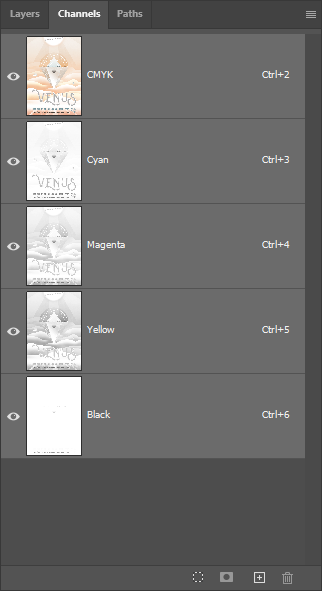
Photoshop Channels Panel

Open the Channels Panel

In Photoshop, go to Window > Channels to open the Channels panel. This technique requires creating a white ink spot channel for overprinted elements.

⚠️

Important: This technique produces TWO output files - an underprint file and an overprint file. Plan your layer organization accordingly.

Selection of Overprinted Elements

Select Overprinted Art Elements

Identify and select all art elements that will print ON TOP of the laminate layer. These elements need white ink backing to appear vibrant over the matte laminate surface.

💡

Use the Magic Wand or Quick Selection tool to select design elements. Consider which elements benefit from the glossy vs. matte contrast.

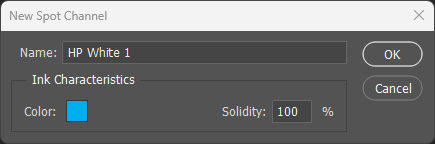
HP White 1 Spot Channel Dialog

Create White Ink Spot Channel

With your selection active, hold Ctrl (Cmd on Mac) and click the New Channel button. Name it HP White 1 exactly as shown. Set the color to 100% Cyan and Solidity to 100%.

⚠️

Critical: The name must be exactly HP White 1 with correct capitalization and spacing for the press to recognize it.

Extracted Overprint Art

Extract Overprint Art to New Layers

Copy the selected overprint elements to new layers or a separate layer group. These elements will become part of the OVERPRINT file that prints after lamination.

💡

Use Ctrl+J (Cmd+J on Mac) to copy the selection to a new layer. Group overprint layers for easy organization.

Underprint Art Elements

Prepare Underprint File

Hide or delete the overprinted elements from your base artwork. What remains is your UNDERPRINT file - the CMYK elements that print BEFORE the laminate is applied.

⚠️

Output File 1: Save this as your underprint PDF. This file should contain ONLY the background/underprint elements with NO spot channels.

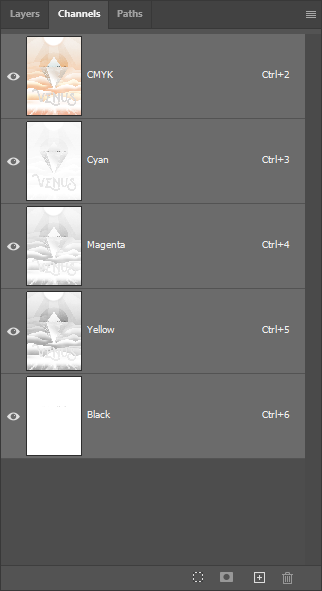
Verify Underprint Layer Order

Verify Underprint Layer Order

Check your underprint file's Channels panel. It should show only CMYK channels with no spot color channels. The underprint file is pure CMYK artwork.

💡

Save as PDF with "Preserve Photoshop Editing Capabilities" unchecked for a cleaner print file.

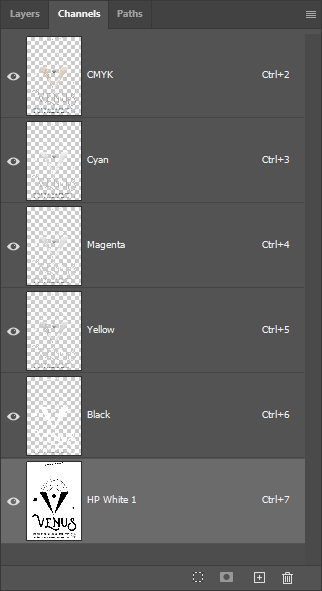
Overprint Layer Order with HP White 1

Prepare Overprint File

Create your OVERPRINT file containing ONLY the extracted overprint elements PLUS the HP White 1 spot channel. Verify the channel order: CMYK (bottom) → HP White 1 (top).

⚠️

Output File 2: Save this as your overprint PDF. This file prints AFTER lamination and includes the white ink spot channel for opacity.