



Black Substrate
HP White 1 HP White 1
HP White 2 HP White 2
HP White 3 HP White 3
HP White 4 HP White 4

Feather

Black Epic Uncoated Cover

HP White 1, 2, 3, 4 (Multi-Hit Opacity)

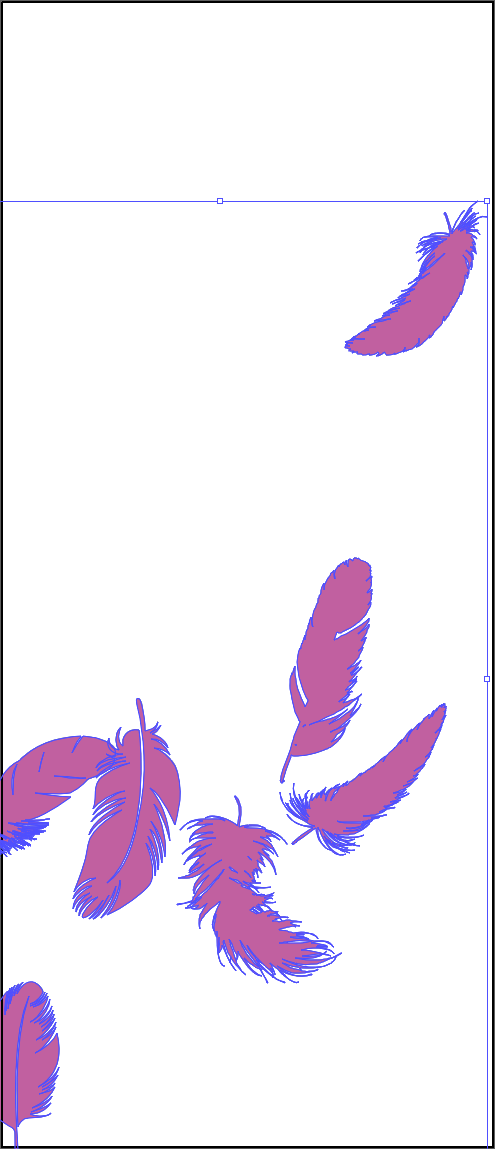
Feather Sample 8

Demonstrates precise opacity control using multiple white ink passes. Each HP White layer can carry any opacity value from 0-100%, allowing designers to achieve any coverage from 0% to 400% through additive layering.

Credit: Black Birch Design Studio

About White Ink Opacity Variations

While basic white ink printing uses a single pass (HP White 1), the HP Indigo press supports up to four white ink channels: HP White 1, 2, 3, and 4. Each channel can carry any opacity value from 0-100% at each pixel, and the coverage is additive across all layers.

This means designers can achieve any total coverage from 0% to 400%. For example, 180% coverage could be achieved with HP White 1 at 100% plus HP White 2 at 80%, or any other combination that adds up to the desired value.

This technique enables smooth gradients, photographic tones, and precise opacity control on dark substrates—effects impossible with single-pass white ink.

Best Practices

File Setup

Interactive Demo

Hover over the artwork to see real-time pixel-level coverage readings for each HP White layer (0-400% total).

Adobe Illustrator

HP White 1, 2, 3, 4 Setup

Creating multi-layer white ink opacity in Adobe Illustrator

Step 1 of 14
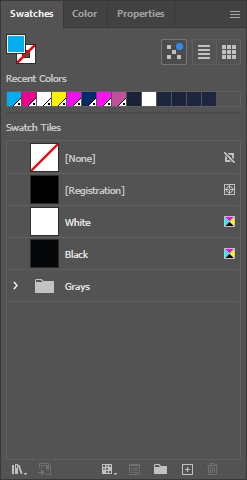
Illustrator Swatches Panel

Open the Swatches Panel

In Adobe Illustrator, go to Window > Swatches to open the Swatches panel. You'll create all four HP White spot colors here.

💡

You can use the keyboard shortcut F5 to toggle the Swatches panel.

Layer Structure showing duplicated artwork

Understand the Layer Structure

For multi-hit opacity, duplicate the same artwork onto multiple layers, each assigned to a different HP White spot color. The layers stack in the same position.

⚠️

Key concept: Each layer folder contains identical copies of the artwork, but with different spot color assignments. For 4-hit (100%) coverage, you need 4 copies of the same artwork.

💡

Organize by "hit count": 1-hit folder (HP White 1 only), 2-hit folder (HP White 1 + 2), etc.

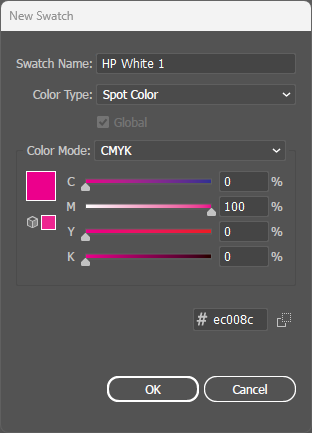
New Swatch Dialog for HP White 1

Create HP White 1 Spot Color

Click the Swatches panel menu and select New Swatch. Configure:

  • Swatch Name: HP White 1
  • Color Type: Spot Color
  • Color Mode: CMYK
  • Preview: 100% Cyan (for visibility)
⚠️

Critical: The name must be exactly HP White 1 with correct capitalization and spacing.

Apply HP White 1

Apply HP White 1 to Selection

With your artwork selected, click the HP White 1 swatch to apply it. The artwork will appear cyan (preview color) but will print as white ink.

💡

Repeat this process for each additional HP White channel (2, 3, 4) based on your opacity needs.

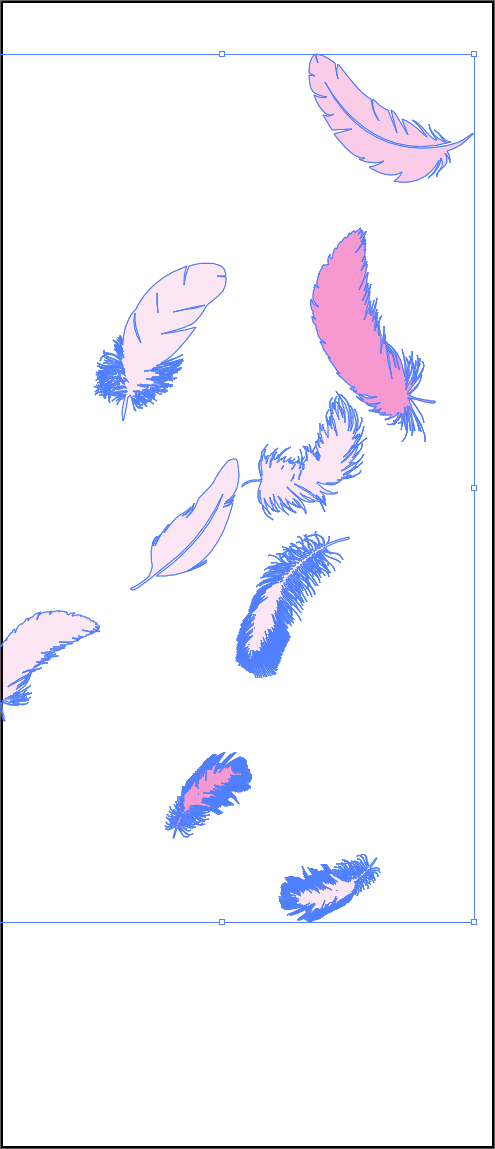
Selection for HP White 2

Select Artwork for HP White 2

Select artwork elements that will receive HP White 2. Elements needing 50% or more total coverage should include this channel.

💡

The same artwork element can be assigned to multiple HP White channels for additive coverage.

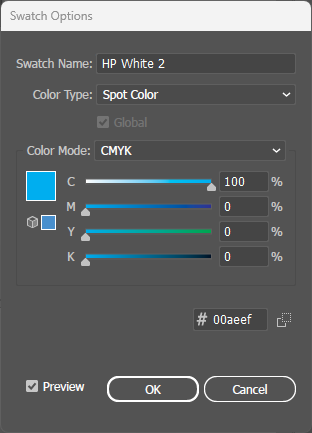
New Swatch Dialog for HP White 2

Create HP White 2 Spot Color

Create another spot color swatch:

  • Swatch Name: HP White 2
  • Color Type: Spot Color
  • Preview: 100% Magenta (for visibility)
💡

Using different preview colors (Cyan, Magenta, Yellow, Black) helps distinguish the four channels visually.

Apply HP White 2

Apply HP White 2 to Selection

Apply HP White 2 to the selected artwork. Areas receiving both HP White 1 and HP White 2 will have additive coverage (up to 200%).

Selection for HP White 3

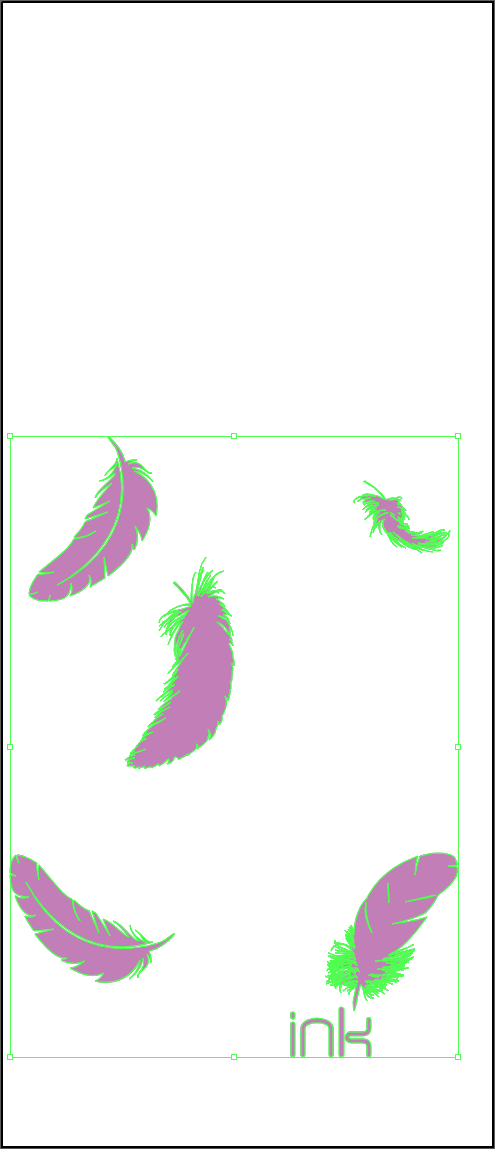
Select Artwork for HP White 3

Select artwork elements needing HP White 3. Elements requiring 75% or more total coverage should include this channel.

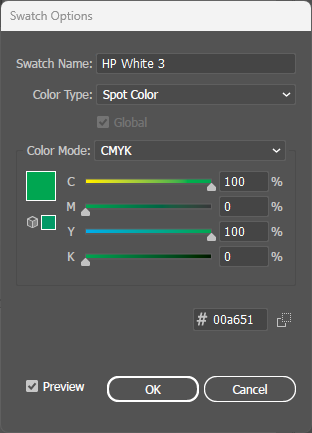
New Swatch Dialog for HP White 3

Create HP White 3 Spot Color

Create the third spot color swatch:

  • Swatch Name: HP White 3
  • Color Type: Spot Color
  • Preview: 100% Yellow (for visibility)
Selection for HP White 4

Select Artwork for HP White 4

Select artwork elements needing HP White 4—the fourth and final white ink channel. Elements needing maximum 400% coverage use all four channels.

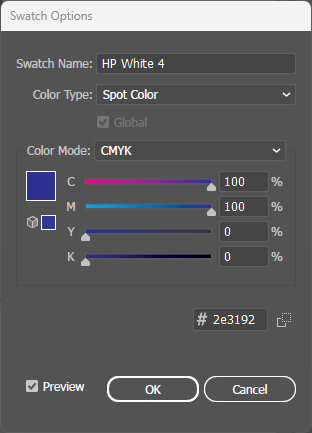
New Swatch Dialog for HP White 4

Create HP White 4 Spot Color

Create the fourth and final spot color swatch:

  • Swatch Name: HP White 4
  • Color Type: Spot Color
  • Preview: 100% Black (for visibility)
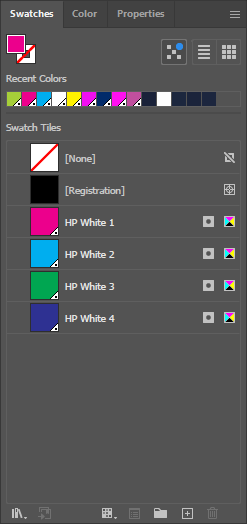
Swatches Panel with all 4 HP White colors

Verify All Swatches Created

Your Swatches panel should now show all four HP White spot colors:

  • HP White 1 (Cyan preview)
  • HP White 2 (Magenta preview)
  • HP White 3 (Yellow preview)
  • HP White 4 (Black preview)
💡

Each swatch should have a white triangle in the corner indicating it's a spot color.

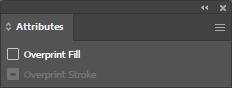
Attributes Panel - Overprint Fill

Enable Overprint Fill (ALL Layers)

This step is critical. For each HP White channel:

  1. Select all artwork using that HP White color
  2. Open Window > Attributes
  3. Check Overprint Fill
⚠️

Critical: ALL FOUR HP White colors must have Overprint Fill enabled. Without this, white ink areas will knock out underlying layers and each other.

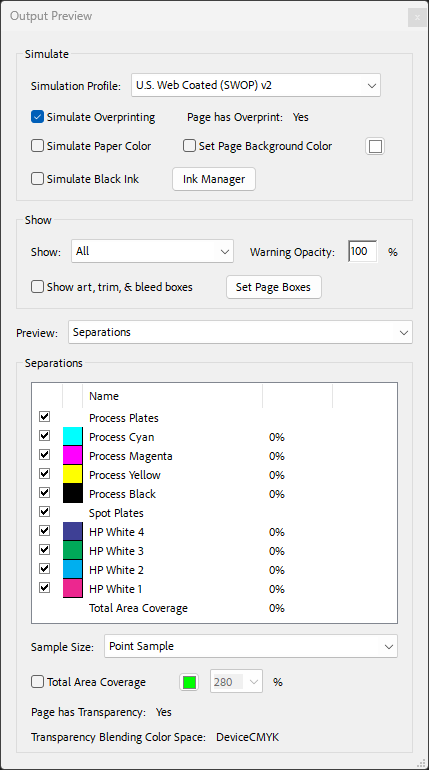
Separations Preview

Verify in Separations Preview

Go to Window > Separations Preview and toggle visibility. You should see four separate HP White channels:

  • HP White 1 - First pass coverage
  • HP White 2 - Second pass coverage
  • HP White 3 - Third pass coverage
  • HP White 4 - Fourth pass coverage
💡

The overlapping areas in the preview show where multiple HP White channels combine for higher total coverage.

Hover over the artwork to see layer-by-layer coverage